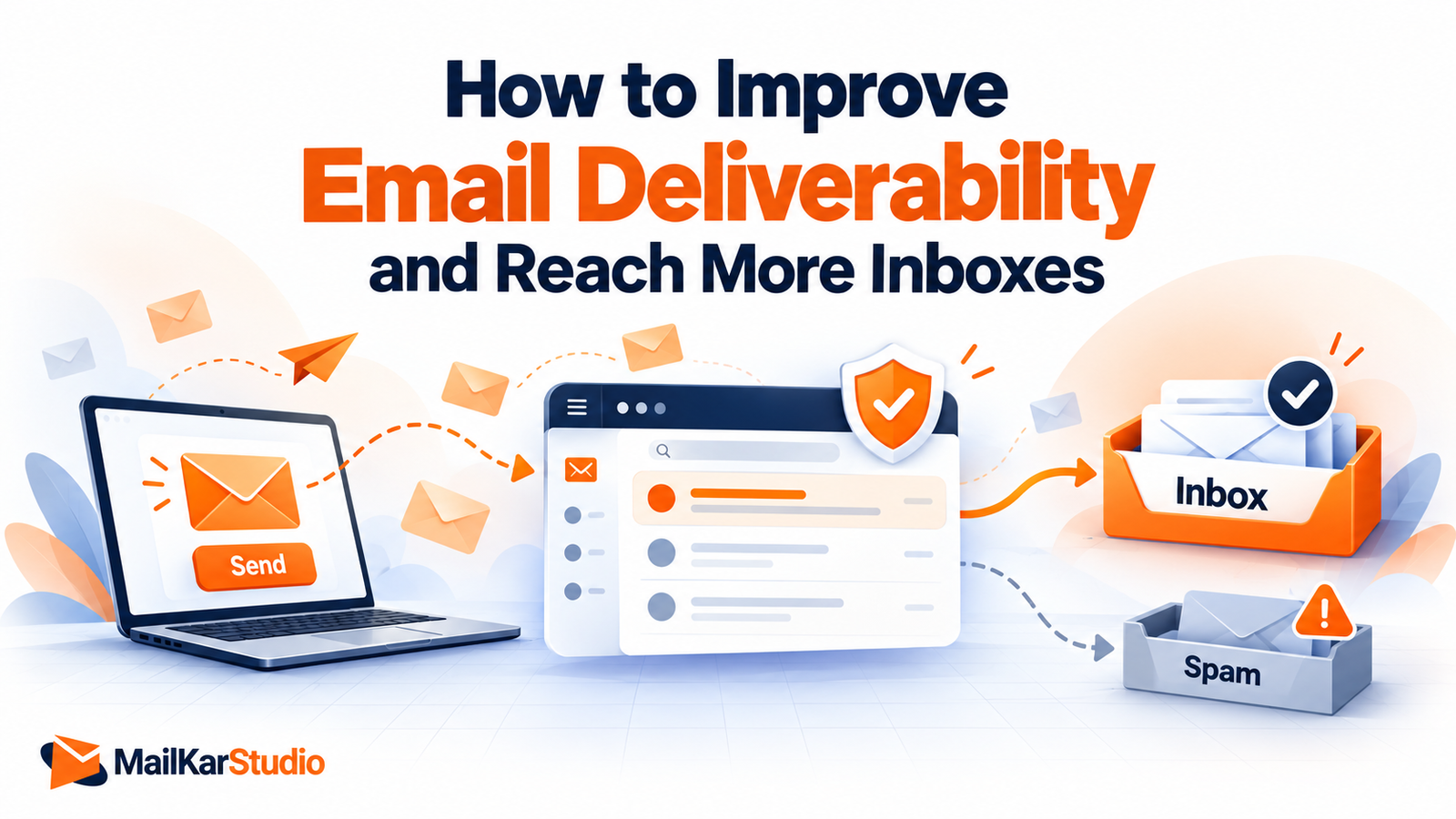
To improve email deliverability, start with a sound sending setup and a clean subscriber list. Set up SPF, DKIM, and DMARC so Gmail, Yahoo, and Outlook can check who sent your emails. Then support that setup with useful messages, clear subscriber consent, and a gradual increase in sending volume.
Together, these practices help your emails reach the inbox, which is what email deliverability is about. A message marked “delivered” can still land in spam, leaving customers without your offers, updates, and follow-ups. Tracking bounces, spam complaints, and inbox placement helps you see where this happens and what needs to change.
This guide walks you through those checks in order, so you can find the cause, make the right fixes, and measure progress across your campaigns.
Email Delivery and Inbox Placement
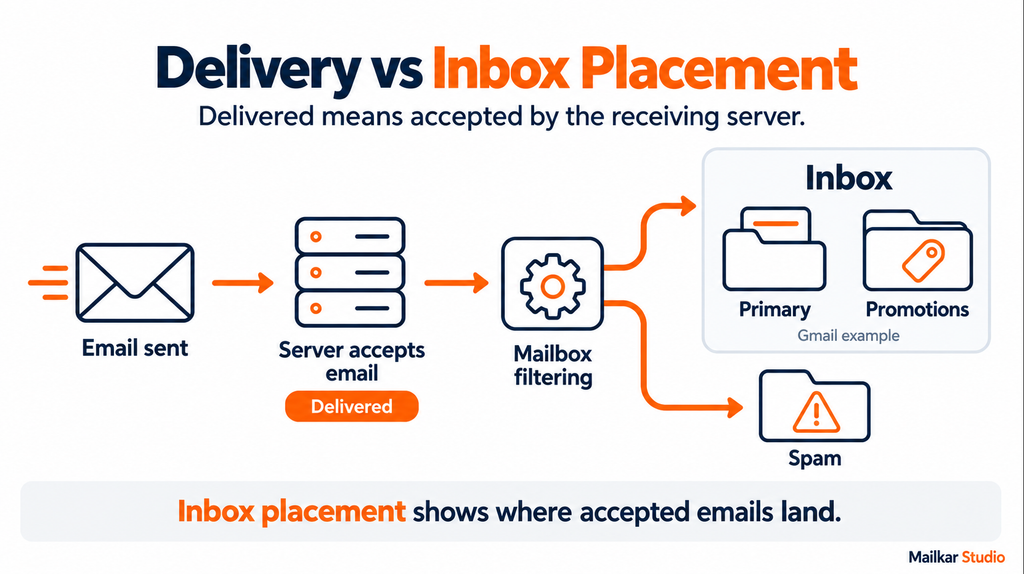
A delivery report tells you how many emails the receiving servers accepted. Inbox placement tells you where those accepted messages landed.
For example, 980 accepted emails out of 1,000 sends give a 98% delivery rate. That number alone does not show how many emails reached the inbox or went to spam.
Gmail’s Promotions tab is part of the inbox. A sales email appearing there has not landed in spam. Check where your messages arrive before making changes to your email program.
How to Improve Email Deliverability?
Start by finding where results changed. Then review your sending setup, subscriber list, and campaigns in that order, using the steps below.
1. Find the Cause of Delivery Problems
Open recent reports in your email service provider, or ESP. This is the platform you use to build and send campaigns, such as Klaviyo, Mailchimp, or HubSpot.
Check bounces, spam complaints, clicks, and conversions. A conversion is the action you want someone to take, such as buying a product or booking a call.
Compare these results with earlier emails sent to a similar group. Check Gmail, Yahoo, and Outlook results separately, since a problem may affect just one provider.
Next, review what changed before results dropped. An older list, a new sending domain, or a sharp rise in volume can help explain the issue.
Failed sends often include an SMTP response. This is a message from the receiving server that explains why an email was delayed or rejected.
Use that reason to choose the next step. An invalid address needs a list check, while an authentication error needs a setup check.
If the cause is unclear, our email deliverability audit and management service can help identify the issues affecting inbox placement.
2. Check Email Authentication
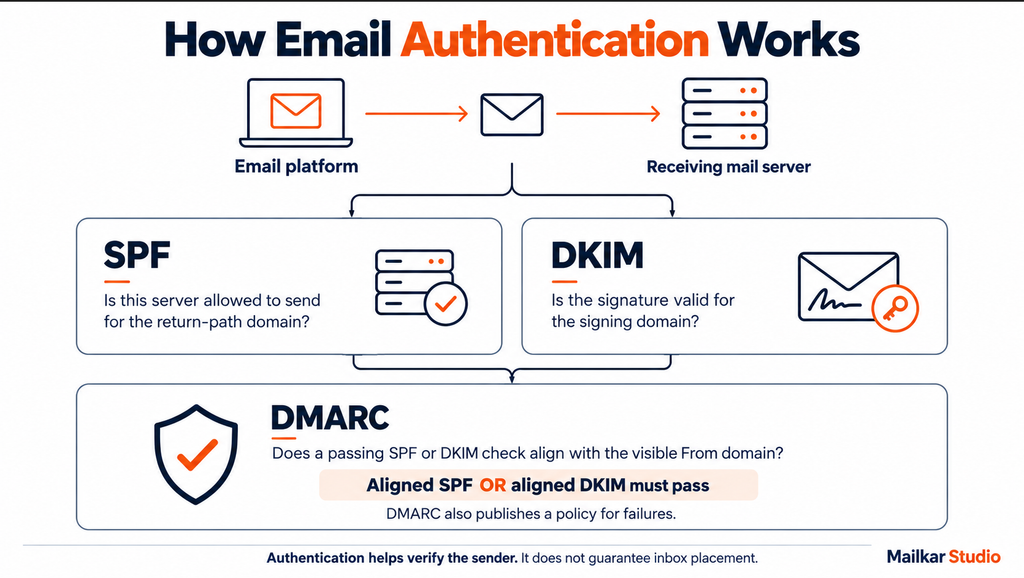
Mailbox providers check who sent an email before deciding where it goes. Email authentication helps show that you can send from your domain.
Your From domain is the part after @ in the address readers see. SPF, DKIM, and DMARC help prove that your emails can use that domain.
- SPF lists which servers can send for your return-path domain. This is the domain used to handle bounced emails.
- DKIM adds a digital signature to each email. This helps check which domain sent it and whether signed parts changed on the way.
- DMARC links those checks to the domain in your From address. It passes if SPF or DKIM passes and the domains match under the policy’s rules. This match is called domain alignment.
Ask your ESP or domain administrator to check these settings on a real test email. This confirms whether they work on messages sent from your campaign platform.
3. Follow Mailbox Provider Requirements
Once authentication is set up, check the other rules that apply to your emails.
Gmail and Yahoo require SPF, DKIM, and DMARC for bulk senders. Microsoft also requires them for high-volume senders.
The rules depend on the provider and how much email you send. Ask your ESP to confirm which requirements apply to your account. These checks also cover secure sending, correct server settings, and easy unsubscribe options. Review them when you change platforms or add a new sending tool.
4. Keep Your Email List Clean
A sound sending setup works best with a clean email list. Start by checking how people joined and what they agreed to receive.
Send marketing emails to people who signed up to receive them. A valid email address does not prove permission, so avoid purchased or scraped contacts in subscriber campaigns.
Keep invalid addresses, unsubscribed contacts, and people who report spam off future marketing sends. Store these records in a suppression list, which tells your platform who should no longer receive marketing emails.
This also helps stop an import or connected tool from adding those contacts back.
Review bounce reasons before removing an address. A hard bounce signals a permanent failure, such as an address that does not exist. A soft bounce signals a temporary issue, such as a full mailbox.
A sender block can also stop delivery to a valid address. Read the error message and follow your ESP’s advice before deciding what to suppress.
5. Send Campaigns to the Right Segments
Once your list is clean, group subscribers by their interests and actions. This is called audience segmentation.
For example, a skincare store could send a restock alert to people interested in that product. Recent buyers could receive product care tips or a refill reminder.
These groups help you match each email to the people most likely to find it useful.
Next, check the people who have stopped engaging with your emails. A sunset flow sends a final re-engagement email or short sequence, then stops marketing sends if the person remains inactive.
Base that rule on how often people hear from you and buy. A store with weekly offers needs different rules from a school that runs one course each year.
6. Make Unsubscribing Simple
People’s needs change over time. Give them a clear way to leave your email list when it no longer helps them.
Add a visible unsubscribe link to every marketing email. Subscribers should not need to log in or contact support to stop receiving it.
Bulk senders to Gmail also need one-click unsubscribe in the email headers. These are the details your ESP adds behind the message. A footer link alone does not meet that requirement.
Test the full process with a test contact. Check that the opt-out stops future marketing campaigns and automated marketing emails.
Process requests promptly. Yahoo requires unsubscribe requests to be honored within two days.
7. Increase Sending Volume Gradually
A new sending domain, dedicated IP, or platform setup needs a planned start. Sending your full list at once can cause problems before you have enough data to spot them.
Email warm-up means raising the number of emails you send in stages.
Start with subscribed contacts who have shown recent interest. Add more contacts as delivery results stay healthy and spam complaints remain low.
If errors or complaints rise, hold or reduce volume while you check the cause. Use your ESP’s guidance and actual campaign results to set the pace.
Warm-up should use real subscriber traffic. Simulated opens or replies cannot show how your audience responds to your campaigns.
Our inbox placement and warm-up service can help you assess placement and plan a steady increase in sending.
8. Check Email Content Before Sending
As you build each campaign, make it clear who the message is from and why it is useful.
Use a From name subscribers know and a reply address your team checks. Write a subject line that matches the offer or update inside.
Before launch, check links, buttons, images, and personalization fields. Add fallback text so a missing name does not leave a blank space or broken greeting.
Keep key details in readable text, even when images do not load. Test the email on mobile and desktop, and check that the call to action works.
These checks are part of email quality assurance, or QA. They help you send a clear, usable message that matches what subscribers expect.
9. Monitor Sender Reputation and Inbox Placement
Sender reputation reflects how much mailbox providers trust your emails. Spam complaints, list quality, and sending habits can affect that trust.
Google Postmaster Tools shows Gmail data, such as spam complaints, authentication results, and send errors. Reports may be delayed or limited when you send small amounts of email.
Use inbox placement tests for another view. These tests send your campaign to a group of test addresses and show which folders receive it.
The results can help you spot problems at a specific provider. They do not show what happened in every subscriber’s inbox.
If error messages mention a blocklist, check the listing with the operator or your ESP. Fix the cause before asking for removal.
10. Review Automated Emails as Well as Campaigns
Regular campaigns are only part of your email program. Welcome emails, cart reminders, and other automated flows also need regular checks.
Check who receives each flow, when it sends, and whether its links work. Make sure people leave the flow when its rules no longer apply to them.
Also check how flows overlap with campaigns. Someone could receive several emails on the same day, even when each send has its own schedule.
Track marketing and transactional emails separately where your platform allows it. Transactional emails include receipts and password resets. Separate reporting helps you see which type of message has a delivery problem.
Measure Progress Beyond Open Rates
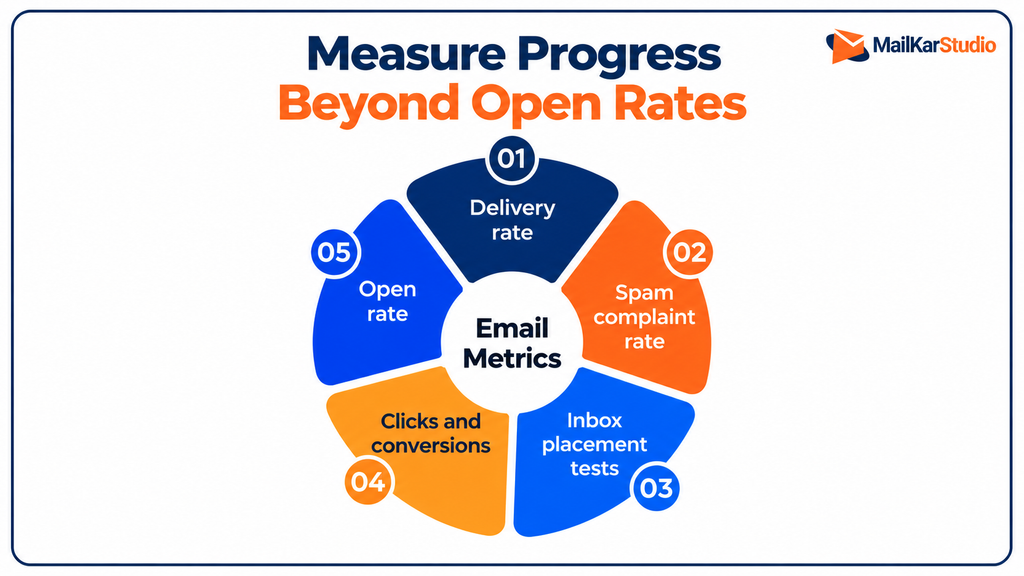
After each change, compare results across several similar sends. Keep a note of what changed and when. This helps you judge whether the fix worked.
- Delivery rate shows how many messages the receiving servers accepted. Review it with bounce reasons to understand failed sends.
- Spam complaint rate shows when recipients report your emails as spam. Google advises keeping its user-reported spam rate below 0.1%. Avoid letting it reach 0.3% or higher. Use each provider’s own reports, as platforms may work out this rate in different ways.
- Inbox placement tests show where messages land in test mailboxes. Use them alongside real campaign data to look for patterns.
- Clicks and conversions show whether readers take the next step. Track the action that fits your campaign, such as a purchase, reply, or booking.
- Open rate adds context, but it cannot prove that people read your emails. Apple’s Mail Privacy Protection makes opens harder to track. Check clicks, purchases, and other actions to see whether people still show interest.
Look for steady progress across these measures. One high open rate or one successful test is not enough to confirm that the issue is fixed.
Frequently Asked Questions
Why do emails go to spam when authentication passes?
Authentication confirms part of your sending setup. Spam complaints, unwanted messages, poor list quality, and sudden volume changes can still affect placement. Review these areas alongside SPF, DKIM, and DMARC.
How long does it take to improve email deliverability?
The time depends on the cause. Fixing a setup error is different from rebuilding a poor sender reputation. Review results across several sends and allow for reporting delays before deciding whether a change worked.
Will changing my email platform solve the problem?
A platform change may help if the sending system is the cause. It will not fix unwanted emails or poor list practices by itself. Find the cause before planning a move.
Do I need a dedicated IP address?
Not every business needs one. A dedicated IP needs steady sending volume to support its reputation. A well-managed shared IP can suit smaller senders. Ask your ESP which option fits your volume and sending pattern.
Can anyone guarantee that every email reaches the inbox?
No. Mailbox providers and recipients control how messages are filtered. Good deliverability work fixes the issues you can control and tracks progress over time.
Get Help With Emails Going to Spam
Share your sending domain, ESP name, and a recent campaign report. Describe when the problem started.
Our email deliverability services cover authentication, list health, sending habits, and inbox placement.
Once we agree on the scope and receive your brief and reports, we will send your audit within 48 hours. It will explain the three priority issues, why they matter, and what to fix first.
About the author